
LiveContainer is an app that allows users to run multiple iOS apps by bypassing the SideStore or AltStore three-app limit.
In this guide, we have shared everything you need to know about installing LiveContainer with SideStore on iOS.
To install LiveContainer with SideStore on iOS, we need to first install SideStore on your device. The next step is to download the LiveContainer IPA file from its official source – www.livecontainer-ios.com.
Install SideStore on your iOS device using AltServer. Open SideStore and tap the plus button. Next, select the LiveContainer IPA file from its official site to sideload it.
To learn the entire process in detail, keep on reading.
Without any further ado, let’s get started:
Sideload LiveContainer:
- Open SideStore.
- Go to the My Apps section.
- Tap on the plus tab and add a new app.
- Select the downloaded LiveContainer IPA file.
- SideStore will then begin the sideloading process.
Set LiveContainer:
- Open LiveContainer.
- Tap on the + icon to add an IPA file.
- Select the IPA file of the app you want to run.
- You may need to enable LiveContainer’s JIT-less mode in settings.
Add Apps To LiveContainer:
Once LiveContainer is set up, you can run apps by opening LiveContainer and selecting the IPA file, and tapping to launch.
Manage your installed apps by long-pressing them in LiveContainer’s app list.
JIT-Less Mode:
Though LiveContainer requires JIT (Just-In-Time) compilation for optimal performance. However, it can also function in a JIT-less mode.
Multiple LiveContainers:
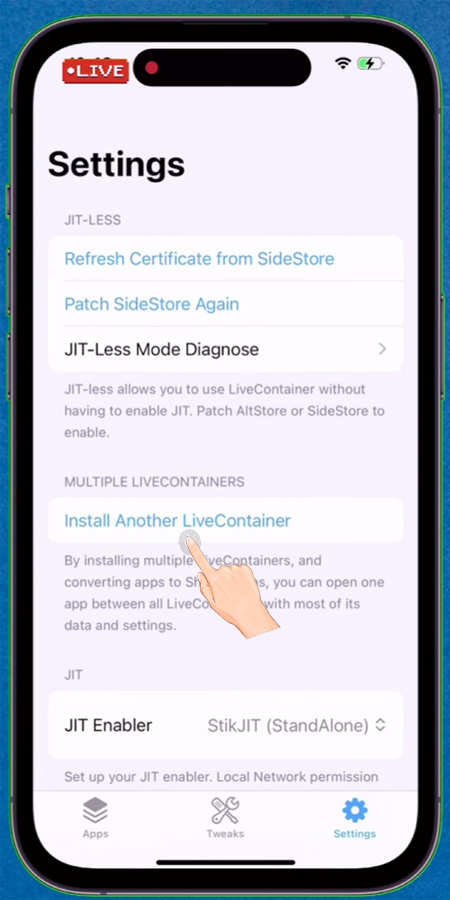
You can install multiple LiveContainers to run different apps simultaneously. To do so, all you need to do is go to LiveContainer settings and tap on “Install Another LiveContainer”.
Remember, SideStore requires refreshing sideloaded apps every 7 days. However, one can create a shortcut automation that will automatically refresh the apps.
That is all you need to know about how to install Livecontainer with Sidestore on iOS.